Google Omni for AI video: a practical guide
Learn where Google Omni fits in an AI video workflow, how to structure a complex scene prompt, and how to try the model with AI-0 credits.
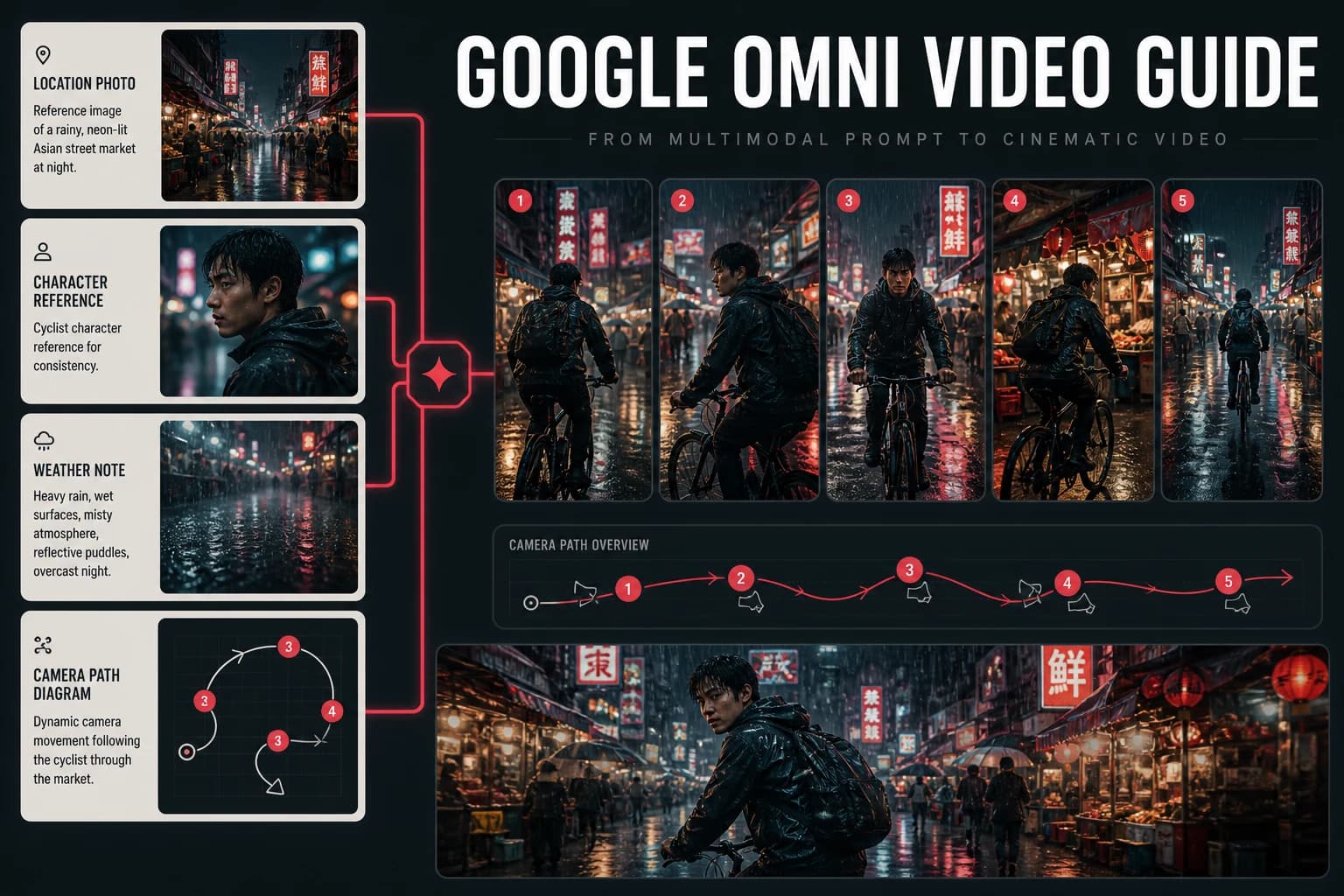
Google Omni, also called Gemini Omni in AI-0, is presented as a multimodal generation model. It is worth testing when a video prompt has several subjects or connected actions, not simply because the prompt is long.
What is Google Omni?
Google Omni is a multimodal AI model built on the Gemini architecture. Unlike single-mode models that specialize in either images or video, Omni is designed to understand and generate across multiple content types. In AI-0, it appears as one of the available video choices; model names and availability can change, so check the live picker.
Try it when the prompt depends on a relationship between objects, such as one person handing an item to another. For a simple landscape pan, a less complex model may cost less or get you there faster.
What makes Google Omni different
- Detailed prompts: suitable for multi-part instructions.
- Scene context: useful when objects and characters need clear relationships.
- Multimodal design: intended to work across more than one content type.
When Google Omni is worth a test
- Complex scenes with multiple subjects or moving elements
- Prompts that require logical or physical accuracy ("a ball rolling down stairs and bouncing")
- Narrative video clips where scene continuity matters
- Documentary or explainer-style content
- Generating video from detailed, multi-sentence prompts
Google Omni vs Veo 3.1
Both are presented as Google models in AI-0, but they are aimed at different jobs. Start with Veo 3.1 for a straightforward realistic shot. Try Google Omniwhen the prompt depends on several elements interacting in a specific way.
That is a rule of thumb, not a scorecard. Review the current cost and model description in the app before spending credits.
How to prompt Google Omni effectively
A detailed prompt helps only when the details agree with each other. Write the scene in the order a viewer would notice it:
- Describe the full scene: setting, subjects, actions, and atmosphere.
- Be explicit about interactions: "a chef tosses a pan over an open flame, sparks fly."
- Include camera and temporal direction: "close-up, then pull back to reveal the full kitchen."
- Specify the mood and tone: "tense, dramatic lighting, slow motion."
How to access Google Omni for free
In AI-0, earn credits through an optional ad, open Video Generation, select Google Omni, and enter your prompt. The app shows the generation status while the clip is processed.
Create on your phone with AI-0
Watch a short ad when you need credits, choose an image or video model, and create without a monthly subscription.
 Download on the App Store
 Get it on Google Play